Create the shipment. Approve the quote. The label comes back.
Omnisells runs the shipping desk for CellnTell. Start a shipment in the portal, see what each carrier would charge, and approve the one you want. Nothing is bought until a person approves it.
The film did not load. Reload the page to try again, or read the written guide instead.
The film and the pictures on this page use sample data. Every customer, price and tracking number in them is invented.
One place for a shipment, from the request to the delivery.
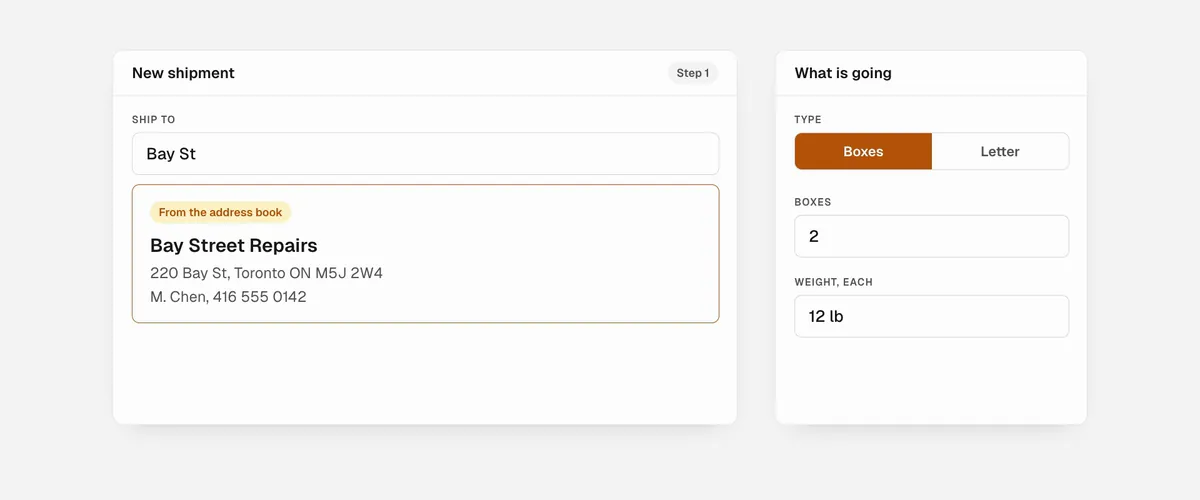
It starts in the portal.
Choose New shipment and say where it is going and what is in it. Start typing a customer you have shipped to before and the address fills in from the address book. If something is still missing, it asks for that and nothing else.
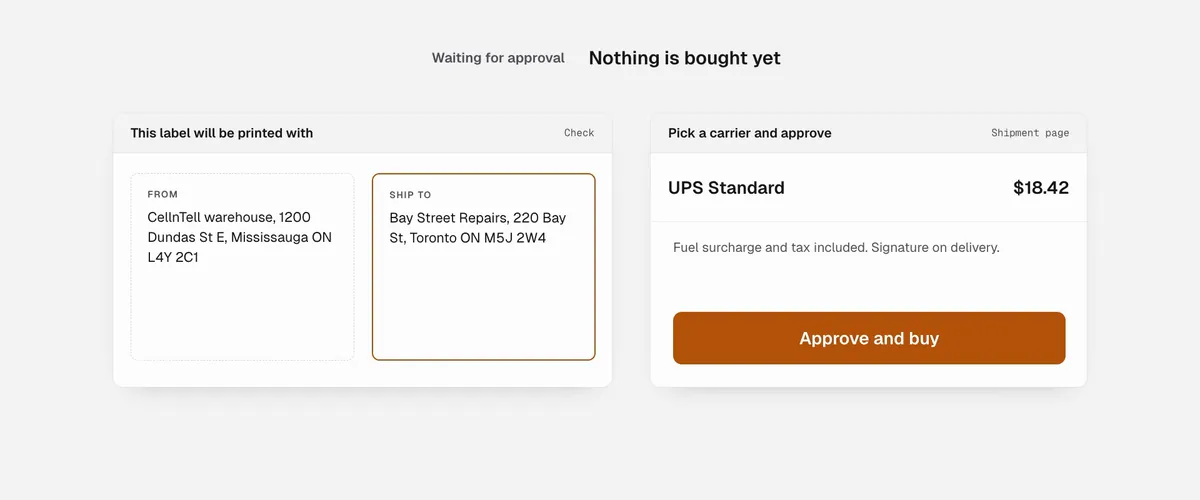
Nothing is bought until a person approves.
The quote lists one line per carrier, lowest price first, with fuel surcharge and tax already in. Check the address and the price, then approve. The label and the tracking number come back on the shipment page and in your inbox.
After the label, it keeps working.
- It watches the parcel
- Tracking updates arrive on the same thread. A vendor you name gets their own, with the tracking number and never the price.
- Problems reach you once
- If a carrier flags an exception, or a label is never scanned, you get one email saying what is wrong. Then it stays quiet until something changes.
- It can phone the carrier
- Where carrier calling is switched on, you start the call from the shipment page, and it speaks as CellnTell's shipping desk. It confirms facts and accepts free fixes to the same address. It will not agree to anything that costs money.
- One report every evening
- What shipped, what is still waiting on an approval, and what the day cost.
Narrated tutorials, by task.
Each one is a part of the walkthrough, 6 to 17 seconds long, with the narration and captions. Pick the question you have and the film plays from there.
- 0:06 How do I create a shipment? Where it is going and what is in it. 12 seconds.
- 0:18 How do I add a PO number, a signature or a vendor? The optional lines on a shipment. 8 seconds.
- 0:26 What if it asks me for more? It shows only the fields it still needs. 6 seconds.
- 0:31 How do I read the quote? One line per carrier, fuel and tax included. 7 seconds.
- 0:38 How do I approve a quote? Check the address and the price, then approve. 7 seconds.
- 0:46 Where do the label and the tracking go? The shipment page, your inbox, and the vendor's own thread. 13 seconds.
- 0:59 What happens when a carrier flags a problem? One email per problem, then quiet until it changes. 7 seconds.
- 1:06 Can it phone the carrier for me? What it can agree to on a call, and what it will not. 6 seconds.
- 1:12 What is in the daily report? What shipped, what is waiting, and what it cost. 6 seconds.
- 1:17 How do I send a request by email, or ship a pallet? Write it the way you normally would. Pallets start by email too. 17 seconds.
Prefer email? Same desk.
Email the shipping mailbox from your CellnTell address, written the way you normally
would. The agent asks for whatever it could not read, sends the quote, and buys the
label when you reply APPROVE.
CNT Wireless staff use the same portal and mailbox. Portal sign-in is approved one work address at a time, so if yours does not get in, ask the shipping team to add it.
Sending a box shipment by emailPallets start by email too.
Send the pallet count, weight and size. The agent replies with what it read and the freight carriers approved for that lane, and the team sends the freight quote.
Pallets, air freight and ocean freightWhat Omnisells is.
Operations agents for commerce teams. Each tool connects to a Google Workspace or Gmail mailbox you control, does one job end to end, and keeps a human on the approval step.
- Shipping Agent
- Takes shipment requests in a portal or from a shared shipping mailbox, quotes parcel options through the carrier accounts you connect, waits for a person to approve, buys the label, and replies with tracking. Pallet requests are logged and quoted by the team. Built for warehouse and fulfilment teams.
- shipping.omnisells.com
- Deal Radar
- Watches marketplace listings for inventory that matches your buying rules, and uses connected Gmail accounts to receive and confirm order messages. Built for resale and procurement teams.
- dealradar.omnisells.com
What Omnisells does with your Google account
Our tools request Gmail access so they can read the messages sent to a specific operations mailbox and reply on its behalf. They do not read personal mail, and access can be removed at any time from your Google account permissions page.